




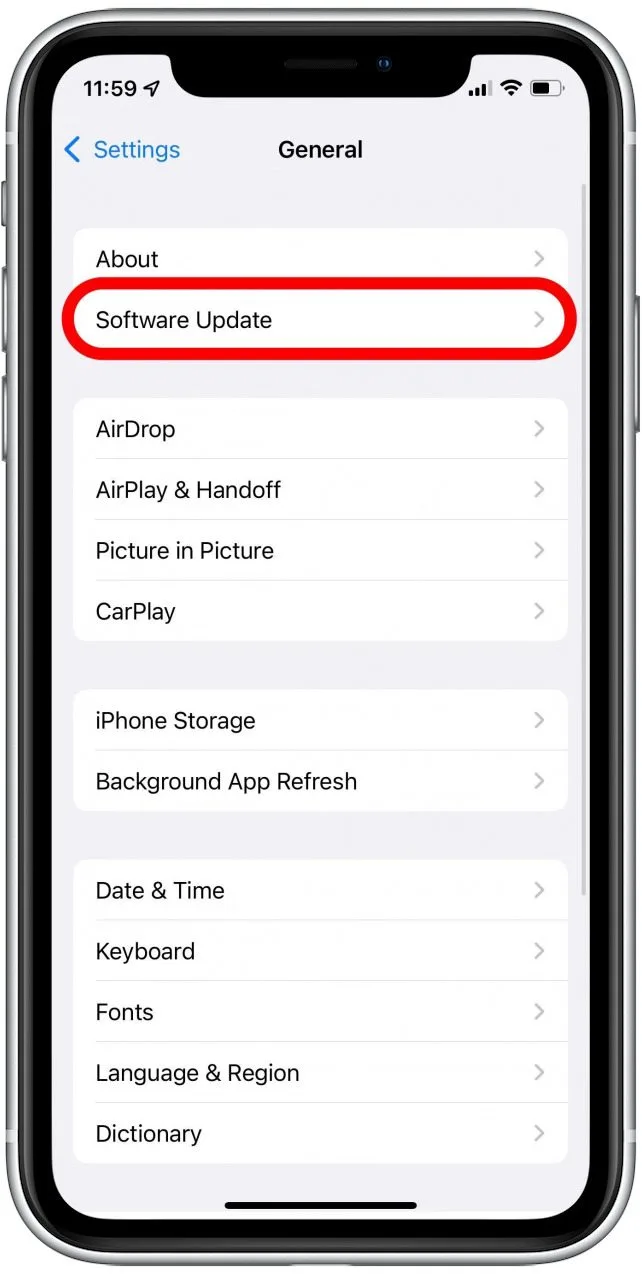
ఓపెన్ సెట్టింగ్లు మీ iPhoneలో, దీనికి నావిగేట్ చేయండి జనరల్ → సాఫ్ట్వేర్ అప్డేట్ , ఆపై డౌన్లోడ్ చేసి ఇన్స్టాల్ చేయండి తాజా iOS వెర్షన్.
నా ఐఫోన్ తప్పు స్థానాన్ని కనుగొనడాన్ని ఎలా పరిష్కరించాలి?
కంటెంట్లు
పరికర భద్రత, ట్రాకింగ్ మరియు కుటుంబ స్థాన భాగస్వామ్యం కోసం ఆపిల్ యొక్క అతి ముఖ్యమైన సాధనాల్లో ఫైండ్ మై ఐఫోన్ ఒకటి. ఇది పోగొట్టుకున్న పరికరాన్ని గుర్తించడంలో, మీ పిల్లల ఆచూకీని పర్యవేక్షించడంలో మరియు మీ ఐఫోన్ తప్పిపోయినా లేదా దొంగిలించబడినా మీ డేటాను రక్షించడంలో మీకు సహాయపడుతుంది. కానీ ఫైండ్ మై ఐఫోన్ చూపించినప్పుడు తప్పు కొన్నిసార్లు అసలు ప్రదేశం నుండి మైళ్ళ దూరంలో ఉన్నప్పటికీ - అది నిరాశపరిచేదిగా మరియు ఆందోళనకరంగా కూడా మారుతుంది.
అదృష్టవశాత్తూ, GPS సిగ్నల్స్, Wi-Fi నెట్వర్క్లు, సాఫ్ట్వేర్ సమస్యలు లేదా పరికర సెట్టింగ్లకు సంబంధించిన పరిష్కరించగల సమస్యల వల్ల దాదాపు ఎల్లప్పుడూ సరికాని Find My iPhone స్థాన డేటా సంభవిస్తుంది. ఈ సమగ్ర గైడ్లో, Find My iPhone తప్పు స్థానాన్ని ఎందుకు చూపుతుందో మరియు సమస్యను దశలవారీగా ఎలా పరిష్కరించాలో మీరు నేర్చుకుంటారు.
1. Find My iPhone ఎందుకు తప్పు స్థానాన్ని చూపుతోంది?
స్థానాన్ని గుర్తించడానికి GPS, సెల్యులార్ టవర్లు, బ్లూటూత్ మరియు Wi-Fi నెట్వర్క్లను కలపడం ద్వారా Find My iPhone పనిచేస్తుంది. ఈ వ్యవస్థల్లో ఏదైనా విఫలమైనప్పుడు లేదా సరికాని డేటాను ఇచ్చినప్పుడు, మ్యాప్లో చూపబడిన స్థానం తప్పు కావచ్చు.
Find My iPhone తప్పు స్థానాన్ని ప్రదర్శించడానికి అత్యంత సాధారణ కారణాలు క్రింద ఇవ్వబడ్డాయి:
- బలహీనమైన లేదా బ్లాక్ చేయబడిన GPS సిగ్నల్
- పేలవమైన Wi-Fi లేదా సెల్యులార్ నెట్వర్క్ కనెక్షన్
- స్థాన సేవలు లేదా ఖచ్చితమైన స్థానం ఆఫ్ చేయబడింది
- పరికరం ఆఫ్లైన్లో ఉంది, పవర్ ఆఫ్లో ఉంది లేదా బ్యాటరీ డెడ్ అయింది
- VPN లేదా ప్రాక్సీ జోక్యం
- కాలం చెల్లిన iOS లేదా సాఫ్ట్వేర్ లోపాలు
- ఆపిల్ మ్యాప్స్ క్రమాంకనం లోపాలు
- భవనాలు, సొరంగాలు లేదా చెడు వాతావరణం వంటి భౌతిక అడ్డంకులు
ఈ కారణాలను అర్థం చేసుకోవడం వల్ల సమస్యను పరిష్కరించడం సులభం అవుతుంది.
2. నా ఐఫోన్ తప్పు స్థానాన్ని కనుగొనడాన్ని ఎలా పరిష్కరించాలి?
Find My iPhone లోపాన్ని పరిష్కరించడానికి ప్రభావవంతమైన, ఆచరణాత్మక పరిష్కారాలు క్రింద ఉన్నాయి. అధునాతన సాంకేతిక పరిజ్ఞానం అవసరం లేకుండానే మీరు ఇవన్నీ చేయవచ్చు.
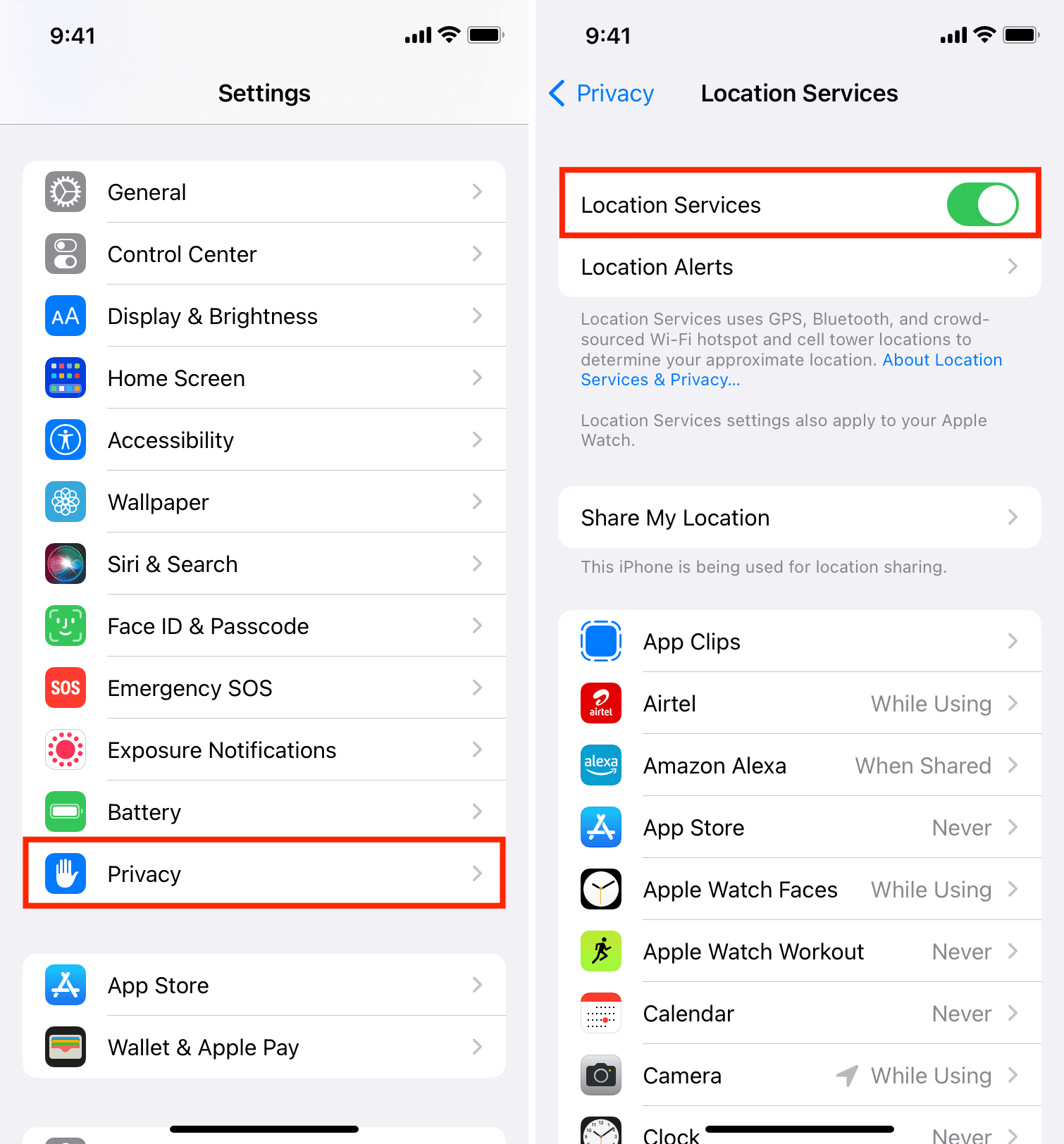
2.1 స్థాన సేవలను ఆన్ చేయండి
Find My పూర్తిగా ఈ సెట్టింగ్లపై ఆధారపడి ఉంటుంది.
ఓపెన్
సెట్టింగ్లు →
వెళ్ళండి
గోప్యత →
ఎంచుకోండి
స్థాన సేవలు →
టోగుల్ చేయండి
స్థల సేవలు
ఆన్
→
క్రిందికి స్క్రోల్ చేసి నిర్ధారించుకోండి
నాని కనుగొను
కు సెట్ చేయబడింది
ఎల్లప్పుడూ
.
2.2 ఖచ్చితమైన స్థానాన్ని ప్రారంభించండి
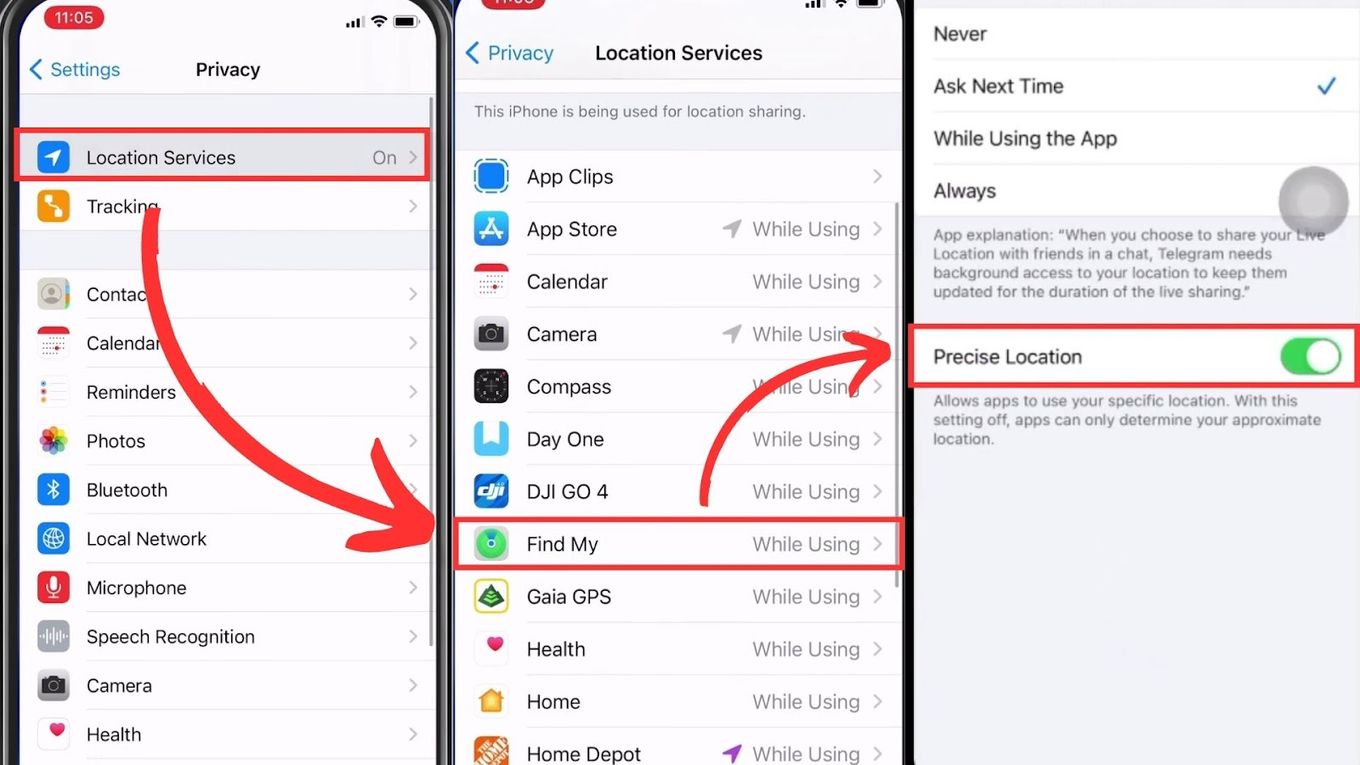
ఖచ్చితమైన స్థానం నిలిపివేయబడితే, Find My అనేది సుమారుగా అంచనా వేసిన ప్రాంతాన్ని మాత్రమే చూపుతుంది.
వెళ్ళండి
సెట్టింగ్లు → గోప్యత & భద్రత → స్థాన సేవలు →
నొక్కండి
నాది కనుగొను →
ఆన్ చేయండి
ఖచ్చితమైన స్థానం
2.3 Wi-Fi ని ఆన్ చేయండి (కనెక్షన్ లేకపోయినా)
మీరు కనెక్ట్ కాకపోయినా Wi-Fi భౌగోళిక స్థాన ఖచ్చితత్వాన్ని గణనీయంగా మెరుగుపరుస్తుంది.
తెరవడానికి క్రిందికి స్వైప్ చేయండి
నియంత్రణ కేంద్రం →
ప్రారంభించు
వై-ఫై
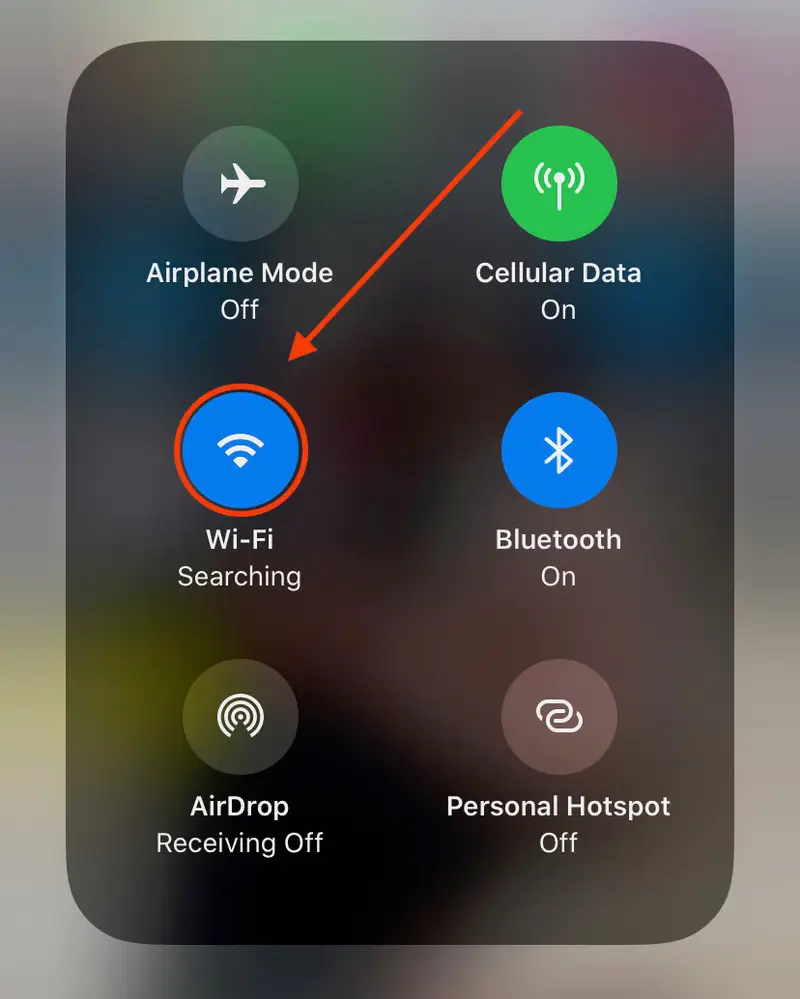
ఇది మీ ఐఫోన్ కోసం అదనపు త్రిభుజాకార పాయింట్లను అందిస్తుంది.
2.4 Find My App ని రిఫ్రెష్ చేయండి
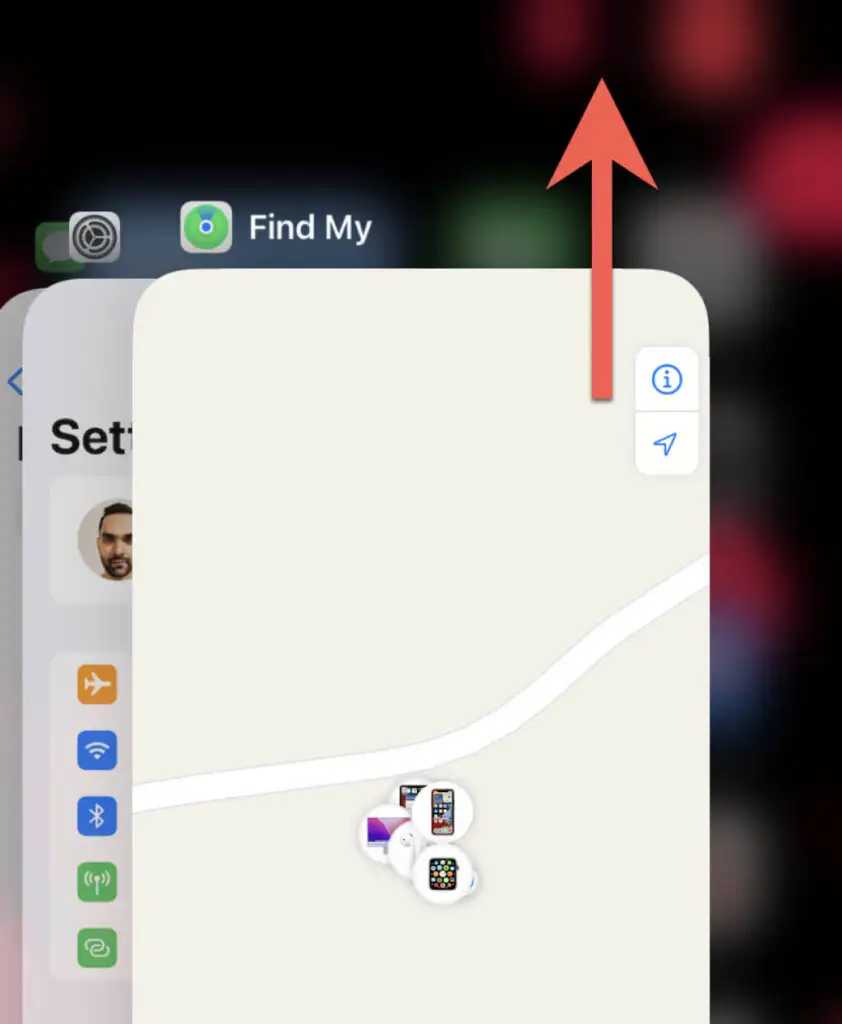
కొన్నిసార్లు Find My పాత డేటాను స్తంభింపజేస్తుంది లేదా కాష్ చేస్తుంది.
యాక్సెస్ చేయండి
యాప్ స్విచ్చర్ →
ముగింపు / ముగింపు
నాది కనుగొను →
దాన్ని మళ్ళీ తెరిచి మ్యాప్ను రిఫ్రెష్ చేయండి.
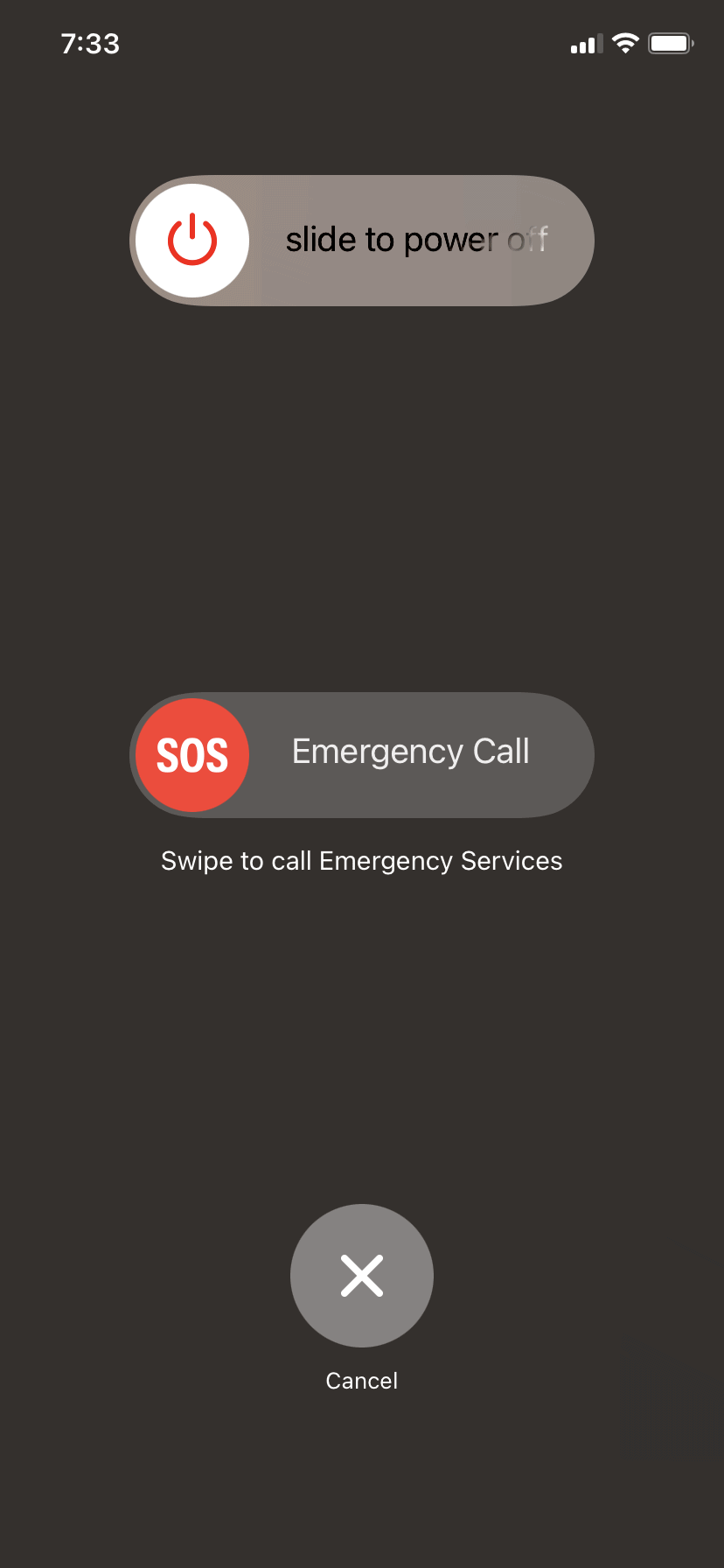
2.5 మీ ఐఫోన్ను పునఃప్రారంభించండి
సాఫ్ట్ రీబూట్ అన్ని నెట్వర్క్ కనెక్షన్లు మరియు GPS సేవలను రీసెట్ చేస్తుంది.
పట్టుకోండి
పవర్ + వాల్యూమ్ పెంపు →
పవర్ ఆఫ్ చేయడానికి స్లయిడ్ చేయండి
→
దాన్ని తిరిగి ఆన్ చేయండి
2.6 iOS ని తాజా వెర్షన్ కు అప్ డేట్ చేయండి
iOS నవీకరణలు క్రమం తప్పకుండా GPS బగ్లను పరిష్కరిస్తాయి మరియు స్థాన సేవలను మెరుగుపరుస్తాయి.
2.7 స్థానం & గోప్యతా సెట్టింగ్లను రీసెట్ చేయండి
మీ GPS డేటా పాడైపోతే, ఈ రీసెట్ తరచుగా సమస్యను పరిష్కరిస్తుంది.
వెళ్ళండి
సెట్టింగ్లు → జనరల్ → ఐఫోన్ను బదిలీ చేయండి లేదా రీసెట్ చేయండి
→
స్థానం & గోప్యతను రీసెట్ చేయండి→
సెట్టింగ్లను రీసెట్ చేయండి
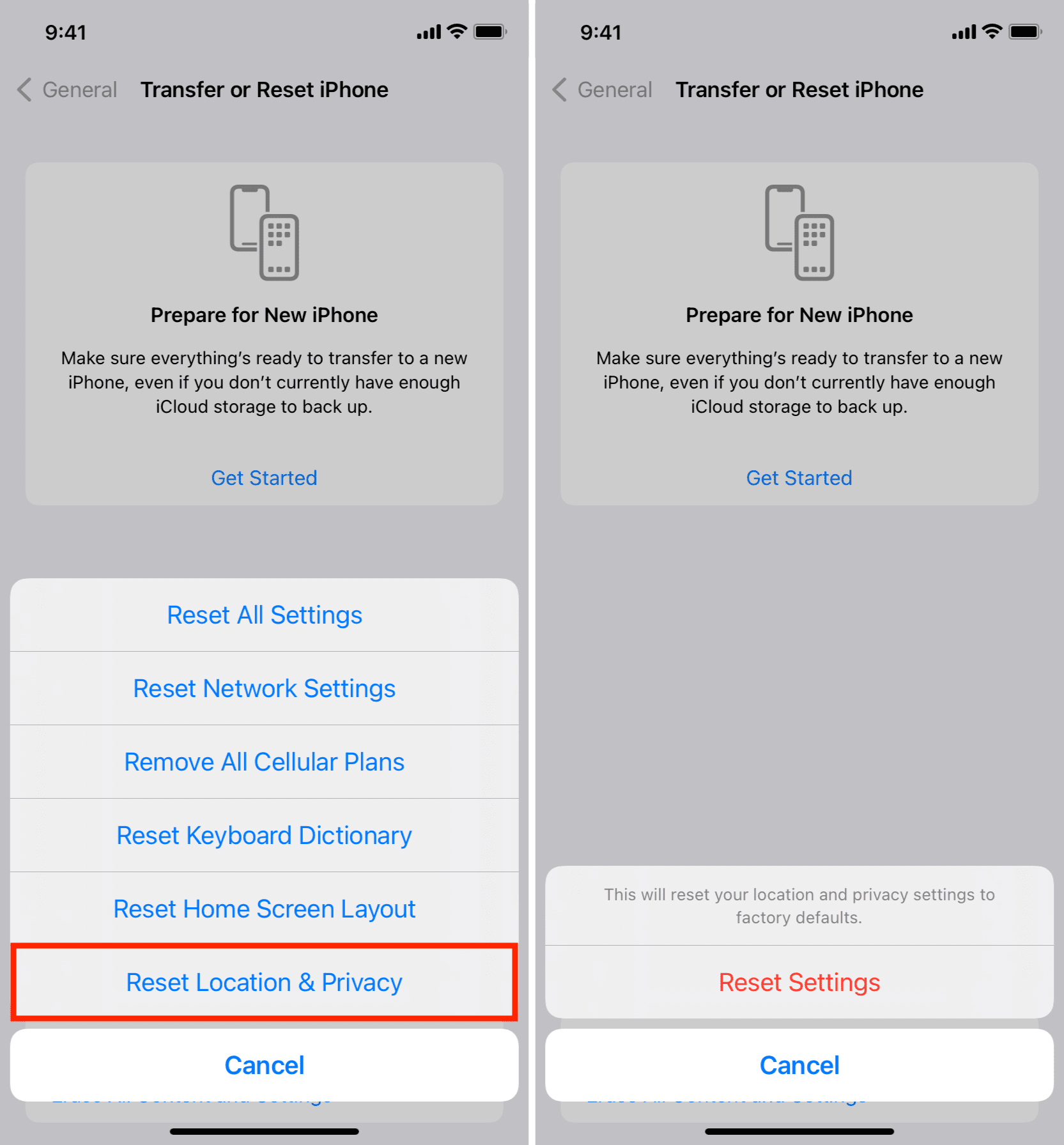
ఇది డిఫాల్ట్ స్థాన సెట్టింగ్లను పునరుద్ధరిస్తుంది.
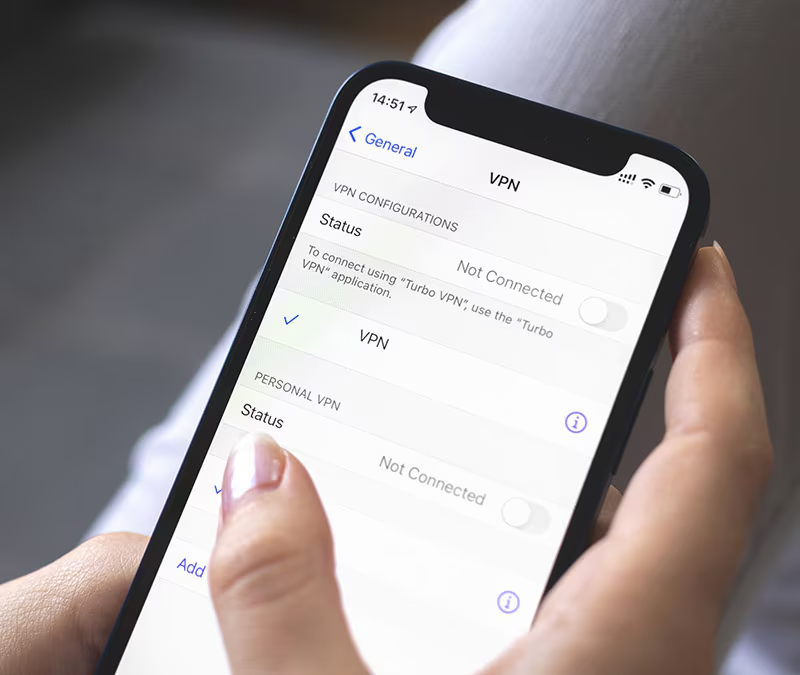
2.8 VPN లేదా ప్రాక్సీని నిలిపివేయండి
VPNలు కొన్నిసార్లు Find My ని గందరగోళానికి గురి చేస్తాయి ఎందుకంటే అవి మీ నెట్వర్క్ రూటింగ్ను మారుస్తాయి.
ఏదైనా యాక్టివ్ VPN ని ఆఫ్ చేసి, ఆపై Find My అప్డేట్లు సరిగ్గా ఉన్నాయో లేదో తనిఖీ చేయండి.
2.9 ఫైండ్ మై నెట్వర్క్ ప్రారంభించబడిందని నిర్ధారించుకోండి
Find My నెట్వర్క్ సమీపంలోని Apple పరికరాలను ఉపయోగించి ఆఫ్లైన్ ట్రాకింగ్ను అనుమతిస్తుంది.
వెళ్ళండి
సెట్టింగ్లు → Apple ID → Find My →
నొక్కండి
నా ఐఫోన్ను కనుగొనండి →
ఆన్ చేయండి
నా నెట్వర్క్ను కనుగొనండి
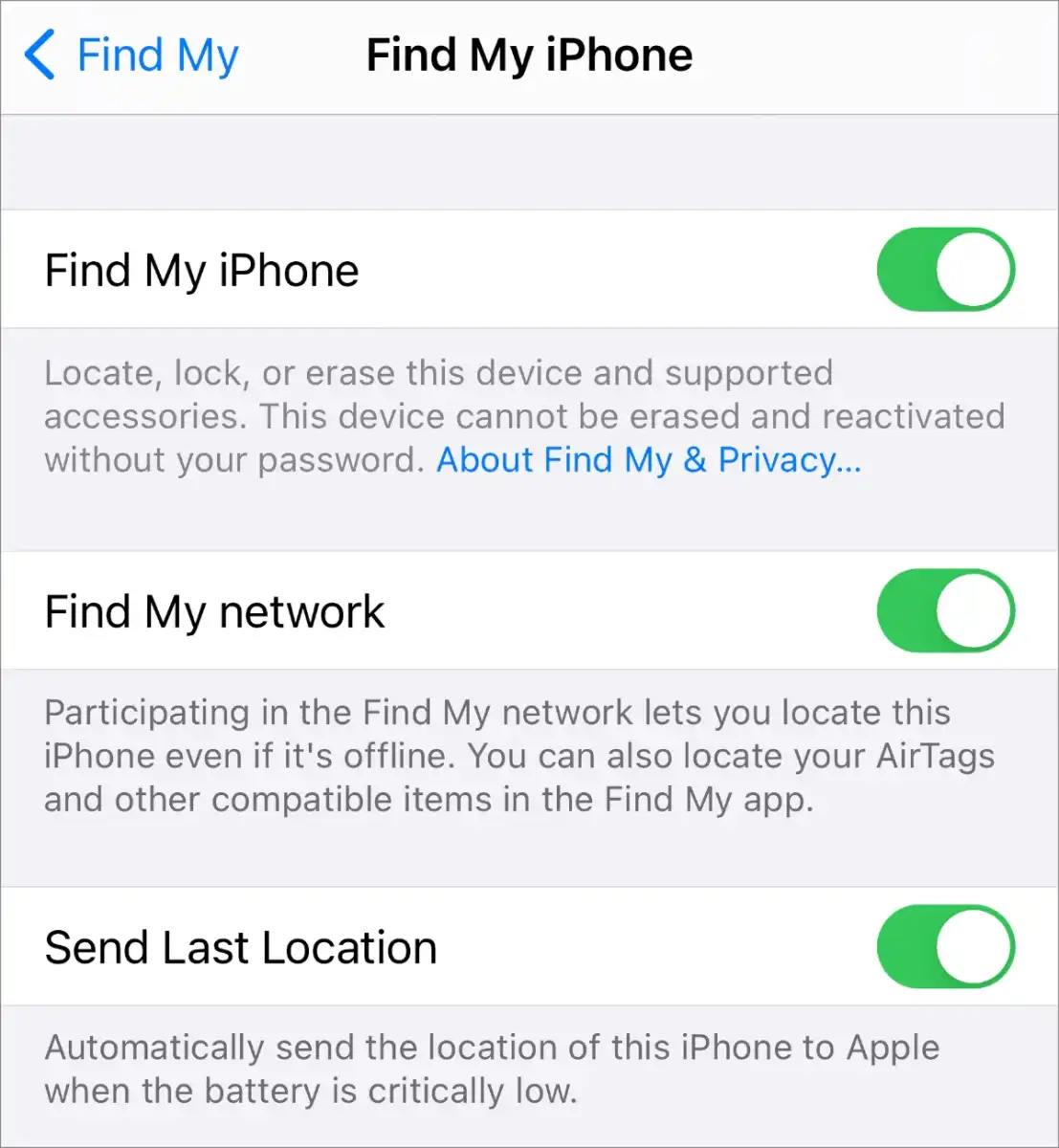
పరికరానికి ఇంటర్నెట్ కనెక్షన్ లేనప్పుడు ఇది ఖచ్చితత్వాన్ని మెరుగుపరుస్తుంది.
2.10 GPS సిగ్నల్ పరిస్థితులను మెరుగుపరచడం
కింది వాటిని ప్రయత్నించండి:
- బయట తిరగండి
- లోహపు పైకప్పులు లేదా మందపాటి గోడలను నివారించండి.
- పెద్ద భవనాలకు దూరంగా ఉండండి
- స్థిరమైన Wi-Fi నెట్వర్క్కు కనెక్ట్ అవ్వండి
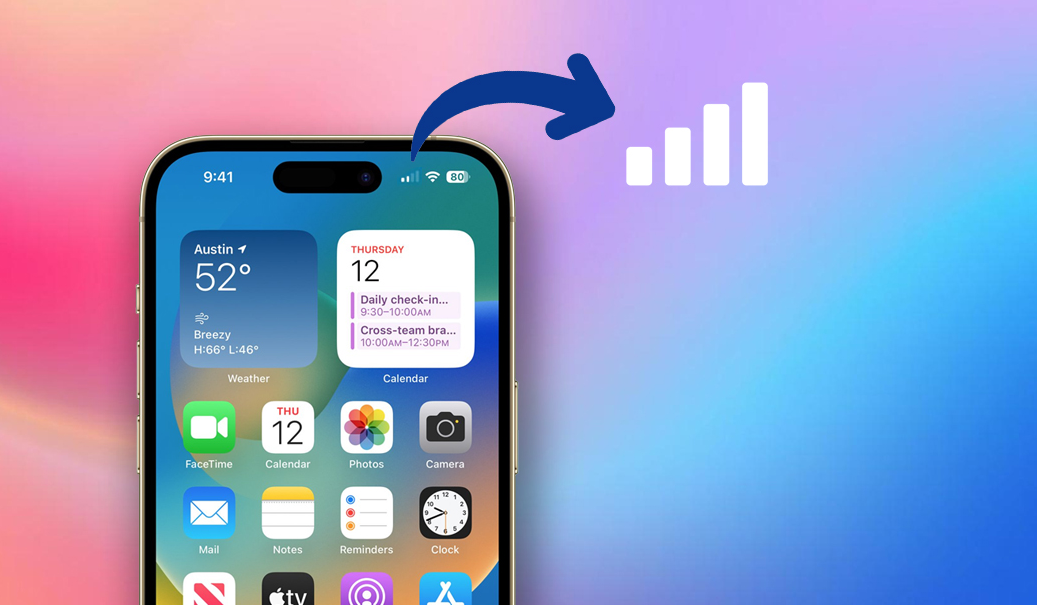
ఈ సరళమైన చర్యలు GPS ఖచ్చితత్వాన్ని నాటకీయంగా మెరుగుపరుస్తాయి.
2.11 మీ ఆపిల్ ID లోకి తిరిగి సైన్ ఇన్ చేయండి
ఇది నా సర్వర్లను కనుగొనుకి కొత్త సమకాలీకరణను బలవంతం చేస్తుంది.
వెళ్ళండి
సెట్టింగ్లు → ఆపిల్ ID →
నొక్కండి
సైన్ అవుట్ →
తిరిగి సైన్ ఇన్ చేయండి
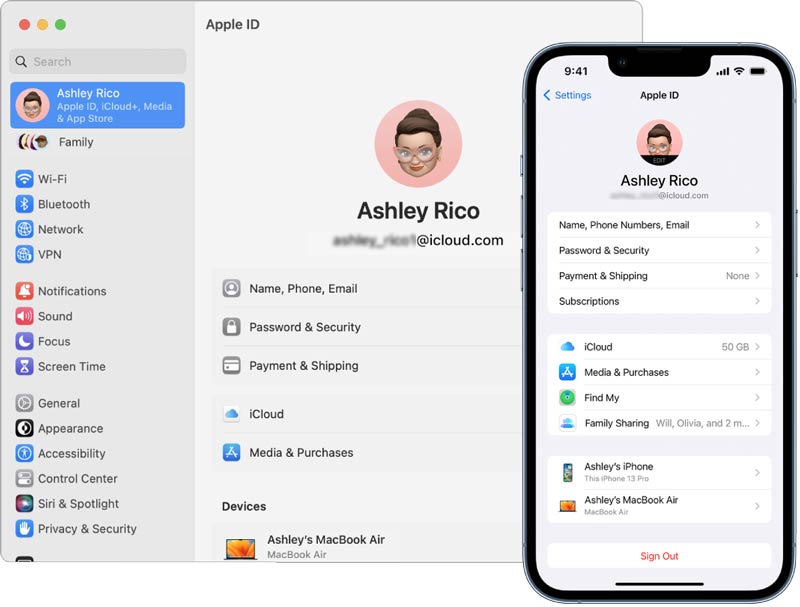
సమస్య సమకాలీకరణ లోపాల వల్ల సంభవించినట్లయితే, ఇది దాన్ని పరిష్కరిస్తుంది.
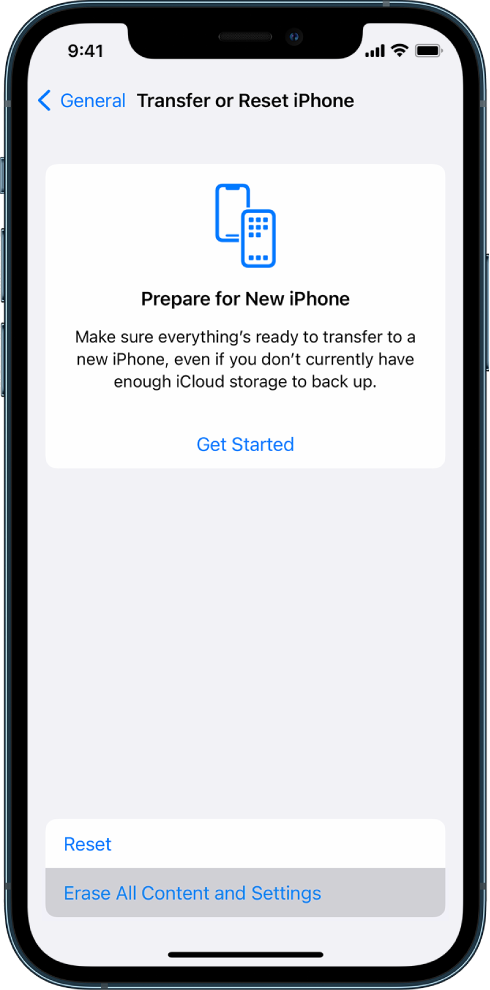
2.12 ఐఫోన్ను పునరుద్ధరించండి
మరేమీ పని చేయకపోతే, పూర్తి పునరుద్ధరణ లోతైన సిస్టమ్ లోపాలను పరిష్కరించవచ్చు.
మీ iPhoneని బ్యాకప్ చేయండి
→
దీని ద్వారా పునరుద్ధరించండి
సెట్టింగ్లు → జనరల్ → ఐఫోన్ను బదిలీ చేయండి లేదా రీసెట్ చేయండి → అన్ని కంటెంట్ మరియు సెట్టింగ్లను తొలగించండి →
పరికరాన్ని మళ్ళీ సెటప్ చేయండి
3. AimerLab MobiGo తో ఐఫోన్ తప్పు స్థానాన్ని అధునాతనంగా పరిష్కరించండి & నిర్వహించండి
మీరు ఇప్పటికీ తప్పు స్థాన నవీకరణలను అనుభవిస్తే—లేదా మీ iPhone యొక్క GPS వ్యవస్థపై మరింత నియంత్రణ కావాలనుకుంటే—వంటి అధునాతన పరిష్కారం AimerLab MobiGo సహాయపడుతుంది.
MobiGo అనేది iOS కోసం ఒక ప్రొఫెషనల్ GPS లొకేషన్ ఛేంజర్, ఇది ఒకే క్లిక్తో మీ పరికరం యొక్క లొకేషన్ను సవరించడానికి, స్తంభింపజేయడానికి లేదా సిమ్యులేట్ చేయడానికి మిమ్మల్ని అనుమతిస్తుంది. ఇది జైల్బ్రేకింగ్ లేకుండా పనిచేస్తుంది మరియు ట్రబుల్షూటింగ్ లేదా లొకేషన్ ఆధారిత యాప్లను నిర్వహించడానికి అనువైనది.
AimerLab MobiGo యొక్క ముఖ్య లక్షణాలు:
- ఒకే క్లిక్తో ప్రపంచవ్యాప్తంగా ఎక్కడికైనా GPS స్థానాన్ని మార్చండి.
- అనుకూలీకరించిన వేగంతో నడక లేదా డ్రైవింగ్ మార్గాలను అనుకరించండి.
- Find My అప్డేట్ కాకుండా నిరోధించడానికి మీ స్థానాన్ని స్తంభింపజేయండి
- Find My, Maps, AR గేమ్లు, Life360, సోషల్ యాప్లు మరియు మరిన్నింటితో పనిచేస్తుంది
- iOS మరియు Android పరికరాలు రెండింటినీ సపోర్ట్ చేస్తుంది.
నా ఐఫోన్ తప్పు స్థానాన్ని కనుగొనడాన్ని పరిష్కరించడానికి MobiGoని ఎలా ఉపయోగించాలి:
- మీ Windows/Mac పరికరంలో AimerLab MobiGo ని డౌన్లోడ్ చేసి, ఇన్స్టాల్ చేయండి.
- USB ద్వారా మీ iPhone ని కనెక్ట్ చేసి, ఈ కంప్యూటర్ను విశ్వసించండి ప్రాంప్ట్ చేయబడితే.
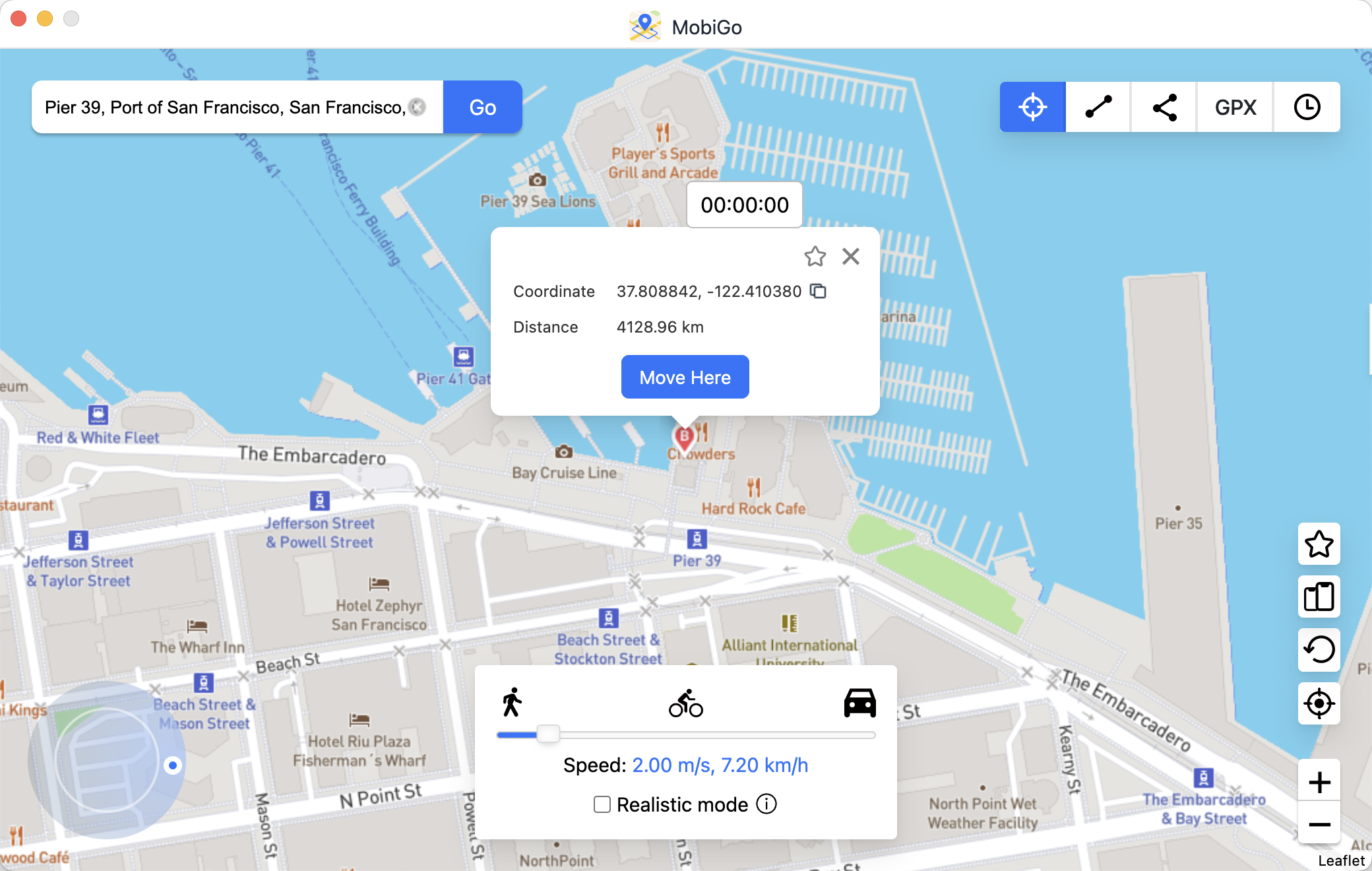
- MobiGo తెరిచి టెలిపోర్ట్ మోడ్ను ఎంచుకుని, మీరు సెట్ చేయాలనుకుంటున్న స్థానం కోసం శోధించండి.
- మీ iPhone యొక్క GPS స్థానాన్ని నవీకరించడానికి ఇక్కడకు తరలించు క్లిక్ చేయండి.
- మీ iPhone లేదా మరొక పరికరంలో Find My ని తెరవండి—దాని స్థానం కొత్త (సరిదిద్దబడిన) ప్రదేశానికి రిఫ్రెష్ అవుతుంది.
3. ముగింపు
Find My iPhone ఒక శక్తివంతమైన సాధనం, కానీ GPS జోక్యం, బలహీనమైన నెట్వర్క్ సిగ్నల్లు, నిలిపివేయబడిన సెట్టింగ్లు, పాత సాఫ్ట్వేర్ లేదా సిస్టమ్ గ్లిచ్ల కారణంగా తప్పు స్థానాలు సంభవించవచ్చు. అదృష్టవశాత్తూ, స్థాన సేవలను ప్రారంభించడం, Wi-Fiని ఆన్ చేయడం, iOSని నవీకరించడం, స్థాన సెట్టింగ్లను రీసెట్ చేయడం లేదా GPS సిగ్నల్ పరిస్థితులను మెరుగుపరచడం వంటి సరళమైన దశలతో చాలా సమస్యలను పరిష్కరించవచ్చు.
తమ iPhone లొకేషన్ను నిర్వహించడానికి లేదా నిరంతర Find My దోషాలను పరిష్కరించడానికి మరింత అధునాతనమైన, ఖచ్చితమైన మరియు సౌకర్యవంతమైన మార్గాన్ని కోరుకునే వినియోగదారులకు AimerLab MobiGo సిఫార్సు చేయబడిన పరిష్కారం. ఇది మీ GPS డేటాపై పూర్తి నియంత్రణను అందిస్తుంది, స్థాన సమస్యలను నిర్ధారించడంలో సహాయపడుతుంది మరియు పరీక్ష, అనుకరణ మరియు దిద్దుబాటు కోసం శక్తివంతమైన లక్షణాలను అందిస్తుంది.
తప్పు ఐఫోన్ స్థాన డేటాను పరిష్కరించడానికి మీకు నమ్మకమైన మరియు ప్రభావవంతమైన మార్గం అవసరమైతే,
MobiGo
మీ పరికరం యొక్క GPS పనితీరును మెరుగుపరచడానికి మరియు నిర్వహించడానికి ఉత్తమ సాధనం.
హాట్ కథనాలు
- How to Resolve iOS 26.2 Can’t Set Up Managed iPhone?
- నా ఐఫోన్లో ఫ్లాష్లైట్ ఎందుకు పనిచేయడం లేదు?
- “అప్గ్రేడ్ చేసిన ఐఫోన్ లేదా కొత్త ఐఫోన్ మిర్రరింగ్ పనిచేయకపోతే” సమస్యను ఎలా పరిష్కరించాలి?
- ఐఫోన్ ఎర్రర్ 75 ను ఎలా పరిష్కరించాలి?
- iPhone iOS 18లో పాస్వర్డ్లను ఎలా కనుగొనాలి?
- నా ఐఫోన్ ఎందుకు మోగడం లేదు? దాన్ని పరిష్కరించడానికి ఈ ప్రభావవంతమైన పరిష్కారాలు
మరింత చదవడానికి
- ఐఫోన్లో పోకీమాన్ గోను స్పూఫ్ చేయడం ఎలా?
- Aimerlab MobiGo GPS లొకేషన్ స్పూఫర్ యొక్క అవలోకనం
- మీ ఐఫోన్లో స్థానాన్ని ఎలా మార్చాలి?
- iOS కోసం టాప్ 5 నకిలీ GPS లొకేషన్ స్పూఫర్లు
- GPS లొకేషన్ ఫైండర్ డెఫినిషన్ మరియు స్పూఫర్ సూచన
- స్నాప్చాట్లో మీ స్థానాన్ని ఎలా మార్చాలి
- iOS పరికరాలలో స్థానాన్ని కనుగొనడం/భాగస్వామ్యం చేయడం/దాచడం ఎలా?