




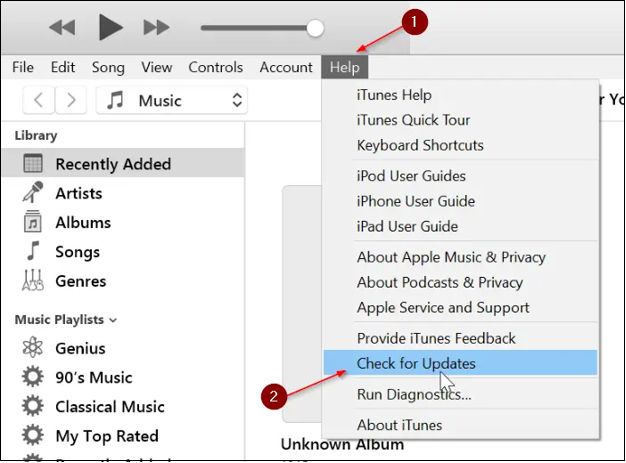
విండోస్లో, iTunes తెరిచి, వెళ్ళండి
సహాయం → నవీకరణల కోసం తనిఖీ చేయండి
, Macలో ఉన్నప్పుడు, తెరవండి
సిస్టమ్ సెట్టింగ్లు → సాఫ్ట్వేర్ అప్డేట్
మరియు తాజా macOS వెర్షన్ను ఇన్స్టాల్ చేయండి.
ఐఫోన్ ఎర్రర్ 75 ను ఎలా పరిష్కరించాలి?
కంటెంట్లు
ఐఫోన్లు సున్నితమైన మరియు నమ్మదగిన వినియోగదారు అనుభవాన్ని అందించడానికి రూపొందించబడ్డాయి, కానీ ఏదైనా సాఫ్ట్వేర్ ఆధారిత పరికరం లాగానే, అవి అప్పుడప్పుడు ఊహించని లోపాలను ఎదుర్కొంటాయి. చాలా మంది వినియోగదారులను నిరాశపరిచే ఒక సమస్య ఐఫోన్ ఎర్రర్ 75, ఇది సాధారణంగా iOS నవీకరణ సమయంలో లేదా iTunes లేదా ఫైండర్ ఉపయోగించి పునరుద్ధరించేటప్పుడు కనిపిస్తుంది. ఎర్రర్ సందేశం తరచుగా ఇలా ఉంటుంది: "ఐఫోన్ను పునరుద్ధరించడం సాధ్యం కాలేదు. తెలియని లోపం సంభవించింది (75)."
ఈ ఎర్రర్ను ఎదుర్కోవడం ఒత్తిడితో కూడుకున్నది కావచ్చు, ముఖ్యంగా మీ ఐఫోన్ ఈ ప్రక్రియలో నిలిచిపోయినప్పుడు, స్పందించనప్పుడు లేదా ఉపయోగించలేని స్థితిలో ఉన్నప్పుడు. చాలా మంది వినియోగదారులకు, ఇంతకు ముందు అంతా బాగానే పనిచేస్తున్నట్లు అనిపించినప్పటికీ, ఎర్రర్ 75 అకస్మాత్తుగా కనిపిస్తుంది. అదృష్టవశాత్తూ, ఈ సమస్య సాధారణంగా సాఫ్ట్వేర్కు సంబంధించినది, హార్డ్వేర్ దెబ్బతినడం కాదు మరియు సాధారణంగా సరైన దశలతో పరిష్కరించబడుతుంది.
ఈ వ్యాసంలో, ఐఫోన్ ఎర్రర్ 75 ఎందుకు సంభవిస్తుందో మేము వివరిస్తాము, ప్రభావవంతమైన పరిష్కారాల ద్వారా మిమ్మల్ని నడిపిస్తాము మరియు ప్రామాణిక పద్ధతులు పరిష్కరించలేని మొండి iOS సిస్టమ్ లోపాలకు అధునాతన పరిష్కారాన్ని పరిచయం చేస్తాము.
1. ఐఫోన్ ఎర్రర్ 75 ఎందుకు సంభవిస్తుంది?
ఐఫోన్ ఎర్రర్ 75 కి కారణాన్ని అర్థం చేసుకోవడం అనేది దాన్ని పరిష్కరించే దిశగా మొదటి అడుగు. ఈ ఎర్రర్ సాధారణంగా మీ ఐఫోన్, కంప్యూటర్ మరియు ఆపిల్ సర్వర్ల మధ్య కమ్యూనికేషన్ అప్డేట్ లేదా పునరుద్ధరణ ప్రక్రియలో అంతరాయం కలిగిందని లేదా విఫలమైందని అర్థం. క్రింద అత్యంత సాధారణ కారణాలు ఉన్నాయి:
1.1 కాలం చెల్లిన iTunes లేదా macOS
మీరు iTunes (Windowsలో) లేదా macOS Finder (Macలో) యొక్క పాత వెర్షన్ను ఉపయోగిస్తుంటే, అది తాజా iOS ఫర్మ్వేర్ను పూర్తిగా సపోర్ట్ చేయకపోవచ్చు. ఈ అనుకూలత సమస్య తరచుగా పునరుద్ధరణ లేదా నవీకరణ వైఫల్యాలకు దారితీస్తుంది.
1.2 పాడైన లేదా అసంపూర్ణ iOS ఫర్మ్వేర్
దెబ్బతిన్న లేదా పాక్షికంగా డౌన్లోడ్ చేయబడిన IPSW ఫర్మ్వేర్ ఫైల్ iTunes లేదా Finder పునరుద్ధరణ ప్రక్రియను పూర్తి చేయకుండా నిరోధించవచ్చు, దీని వలన లోపం 75 వస్తుంది.
1.3 భద్రతా సాఫ్ట్వేర్ జోక్యం
ఫైర్వాల్లు, యాంటీవైరస్ ప్రోగ్రామ్లు లేదా VPNలు iTunes లేదా Finder Apple సర్వర్లను యాక్సెస్ చేయకుండా నిరోధించగలవు, దీని వలన ధృవీకరణ విఫలమవుతుంది.
1.4 USB కనెక్షన్ సమస్యలు
అప్డేట్ లేదా పునరుద్ధరణ సమయంలో తప్పు కేబుల్, USB హబ్ లేదా అస్థిర పోర్ట్ని ఉపయోగించడం వలన మీ iPhone మరియు కంప్యూటర్ మధ్య డేటా బదిలీకి అంతరాయం కలుగుతుంది.
1.5 iOS సిస్టమ్ లోపాలు
అంతర్లీన సిస్టమ్ బగ్లు, విఫలమైన నవీకరణలు లేదా పాడైన iOS ఫైల్లు కూడా ఐఫోన్ ఎర్రర్ 75కి కారణమవుతాయి, ముఖ్యంగా ప్రధాన iOS అప్గ్రేడ్ల తర్వాత.
2. ఐఫోన్ లోపం 75 ను ఎలా పరిష్కరించాలి
ప్రాథమిక పరిష్కారాలతో ప్రారంభించి మరింత అధునాతన పద్ధతులకు మారడానికి నిరూపితమైన పరిష్కారాలు క్రింద ఉన్నాయి.
2.1 iTunes లేదా macOS ని నవీకరించండి
మీరు ఎల్లప్పుడూ తాజా సాఫ్ట్వేర్ను అమలు చేస్తున్నారని నిర్ధారించుకోండి:
ఇది ప్రస్తుత iOS ఫర్మ్వేర్తో పూర్తి అనుకూలతను నిర్ధారిస్తుంది.
2.2 మీ USB కేబుల్ మరియు పోర్ట్ను తనిఖీ చేయండి
కనెక్షన్ సమస్యలు ఆశ్చర్యకరంగా లోపం 75 కి సాధారణ కారణం:
- అసలు ఆపిల్ USB కేబుల్ ఉపయోగించండి
- మీ కంప్యూటర్లోకి నేరుగా ప్లగ్ చేయండి (USB హబ్లను నివారించండి)
- వేరే USB పోర్ట్ని ప్రయత్నించండి
- వీలైతే, మరొక కేబుల్ ప్రయత్నించండి.
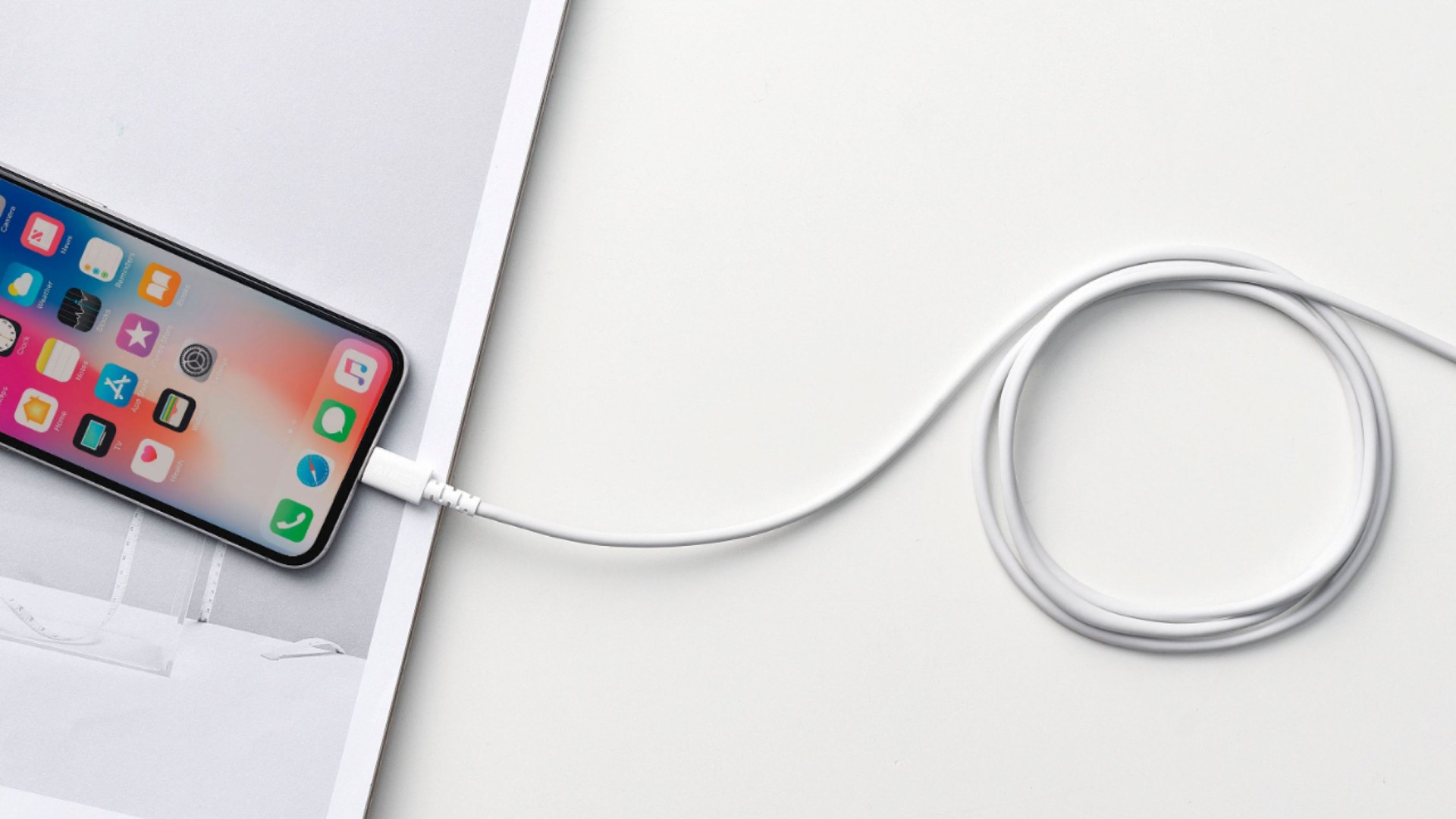
iOSని పునరుద్ధరించడానికి లేదా నవీకరించడానికి స్థిరమైన కనెక్షన్ అవసరం.
2.3 యాంటీవైరస్, ఫైర్వాల్ లేదా VPN ని తాత్కాలికంగా నిలిపివేయండి
భద్రతా సాఫ్ట్వేర్ Apple సర్వర్ కమ్యూనికేషన్ను నిరోధించగలదు:
- యాంటీవైరస్ మరియు ఫైర్వాల్ సాఫ్ట్వేర్ను తాత్కాలికంగా నిలిపివేయండి.
- ఏదైనా యాక్టివ్ VPN ని ఆఫ్ చేయండి
- నవీకరణ లేదా పునరుద్ధరణ ప్రక్రియను మళ్లీ ప్రయత్నించండి
- రక్షణ పూర్తయిన తర్వాత తిరిగి ప్రారంభించండి
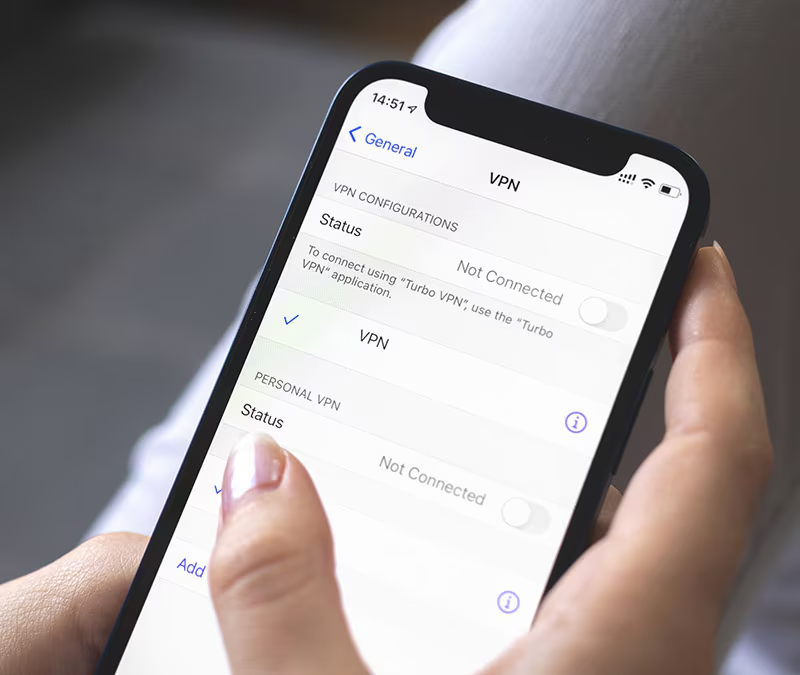
ఈ దశ మాత్రమే చాలా మంది వినియోగదారులకు లోపం 75 ను పరిష్కరిస్తుంది.
2.4 మీ ఐఫోన్ మరియు కంప్యూటర్ను పునఃప్రారంభించండి
సాధారణ పునఃప్రారంభాలు తాత్కాలిక సిస్టమ్ వైరుధ్యాలను క్లియర్ చేయగలవు:
- మీ కంప్యూటర్ను పునఃప్రారంభించండి
- మీ ఐఫోన్ను బలవంతంగా రీస్టార్ట్ చేయండి: మీ ఐఫోన్ను బలవంతంగా రీస్టార్ట్ చేయడానికి, iPhone 8 లేదా తర్వాత వచ్చిన వాటిలో, వాల్యూమ్ అప్ నొక్కి, ఆపై వాల్యూమ్ డౌన్ నొక్కి, సైడ్ బటన్ను పట్టుకోండి; iPhone 7/7 Plusలో, వాల్యూమ్ డౌన్ మరియు సైడ్ బటన్లను కలిపి పట్టుకోండి; మరియు iPhone 6s లేదా అంతకు ముందు వచ్చిన వాటిలో, హోమ్ మరియు పవర్ బటన్లను ఒకే సమయంలో పట్టుకోండి.
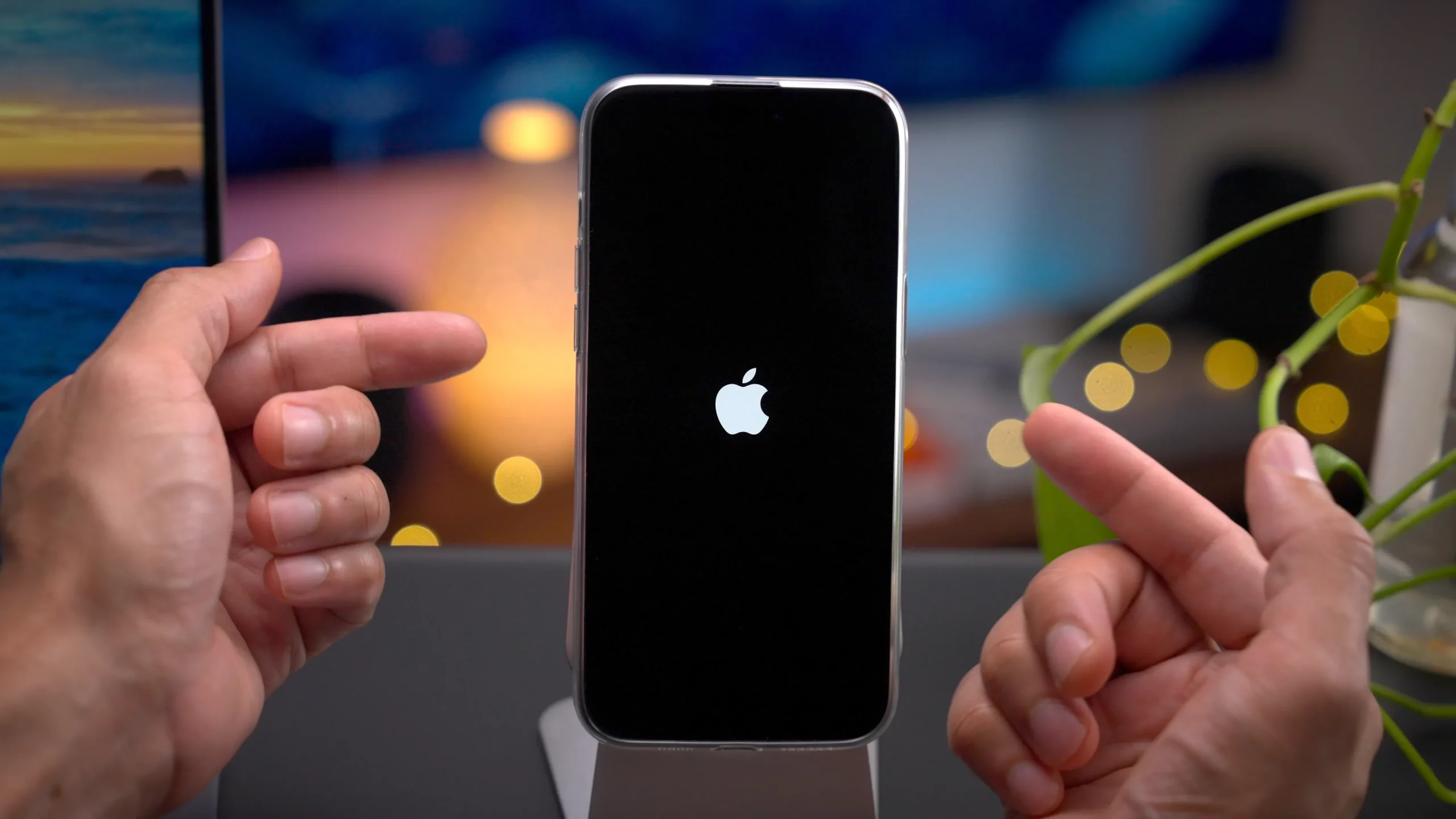
తర్వాత మీ ఐఫోన్ను తిరిగి కనెక్ట్ చేసి, మళ్లీ ప్రయత్నించండి.
2.5 రికవరీ మోడ్ ఉపయోగించండి
సాధారణ పునరుద్ధరణ విఫలమైతే, రికవరీ మోడ్ సహాయపడుతుంది:
- మీ ఐఫోన్ను కంప్యూటర్కు కనెక్ట్ చేయండి
- రికవరీ స్క్రీన్ కనిపించే వరకు బలవంతంగా పునఃప్రారంభించండి
- ప్రాంప్ట్ చేయబడినప్పుడు, ముందుగా అప్డేట్ను ఎంచుకోండి
- నవీకరణ విఫలమైతే, పునరుద్ధరించు ప్రయత్నించండి
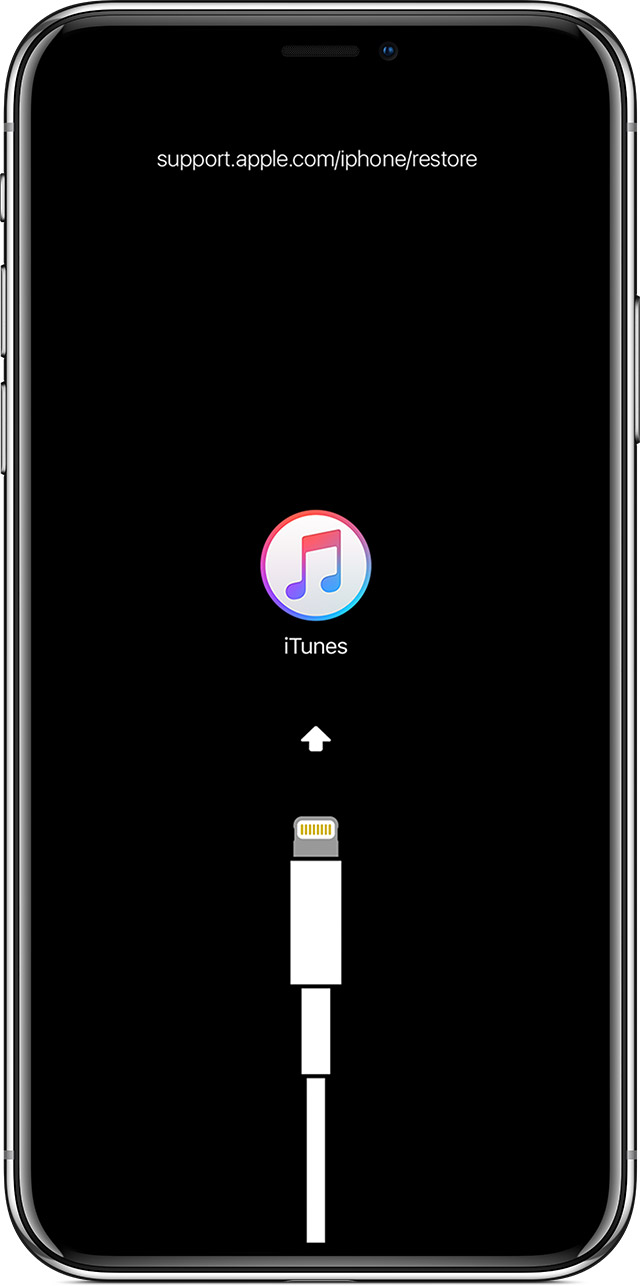
రికవరీ మోడ్ డేటాను వెంటనే తొలగించకుండా iOSని తిరిగి ఇన్స్టాల్ చేస్తుంది (అప్డేట్ ఎంచుకున్నప్పుడు).
2.6 DFU మోడ్ ఉపయోగించి ఐఫోన్ను పునరుద్ధరించండి
DFU (డివైస్ ఫర్మ్వేర్ అప్డేట్) మోడ్ అనేది ప్రస్తుత iOS సిస్టమ్ను దాటవేసే లోతైన పునరుద్ధరణ పద్ధతి:
- ఇది ఐట్యూన్స్ లేదా ఫైండర్ను మొదటి నుండి ఫర్మ్వేర్ను తిరిగి ఇన్స్టాల్ చేయడానికి అనుమతిస్తుంది.
- ముఖ్యంగా నిరంతర లోపం 75 సమస్యలకు ఉపయోగపడుతుంది.
- గమనిక: DFU పునరుద్ధరణ అన్ని డేటాను తొలగిస్తుంది.
ఈ పద్ధతి ప్రభావవంతంగా ఉంటుంది కానీ సాంకేతికత లేని వినియోగదారులకు సంక్లిష్టమైనది మరియు ప్రమాదకరమైనది కావచ్చు.
3. అధునాతన పరిష్కారం: AimerLab FixMate తో iOS సిస్టమ్ లోపాలను పరిష్కరించండి
అన్ని ప్రామాణిక పరిష్కారాలు ఉన్నప్పటికీ ఐఫోన్ ఎర్రర్ 75 తిరిగి వస్తూనే ఉన్నప్పుడు, సమస్య సాధారణంగా లోతైన సిస్టమ్ అవినీతి. ఈ సందర్భంలో, AimerLab FixMate వంటి ప్రొఫెషనల్ మరమ్మతు సాధనం సురక్షితమైన మరియు అత్యంత ప్రభావవంతమైన పరిష్కారం.
AimerLab FixMate iTunes లేదా Finder పై ఆధారపడకుండా iOS సిస్టమ్ సమస్యలను పరిష్కరించడానికి రూపొందించబడింది. ఇది ఇలాంటి సమస్యలను పరిష్కరించగలదు:
- ఐఫోన్ ఎర్రర్ 75
- ఐఫోన్ రికవరీ లేదా DFU మోడ్లో చిక్కుకుంది
- నవీకరణ మరియు పునరుద్ధరణ వైఫల్యాలు
- బూట్ లూప్లు, బ్లాక్ స్క్రీన్లు మరియు స్తంభించిన ఐఫోన్లు
FixMate తో iPhone ఎర్రర్ 75 ని ఎలా పరిష్కరించాలి:
- మీ కంప్యూటర్లో AimerLab FixMate ని డౌన్లోడ్ చేసి ఇన్స్టాల్ చేయండి.
- USB కేబుల్ ఉపయోగించి మీ iPhone ని కనెక్ట్ చేయండి, ఆపై Standard Repair (డేటా నష్టం లేకుండా సమస్యలను పరిష్కరిస్తుంది) ఎంచుకోండి.
- FixMate మీ పరికరాన్ని గుర్తించి సరైన ఫర్మ్వేర్ను డౌన్లోడ్ చేస్తుంది.
- 'రిపేర్ ప్రారంభించు' క్లిక్ చేసి, ప్రక్రియ పూర్తయ్యే వరకు మరియు మీ ఐఫోన్ పునఃప్రారంభమయ్యే వరకు వేచి ఉండండి.
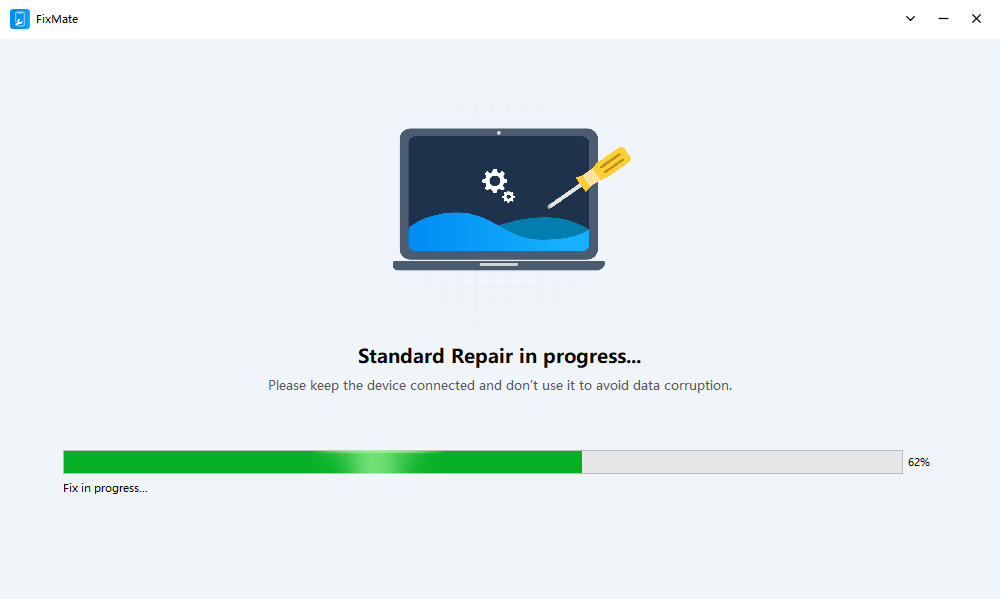
మాన్యువల్ DFU పునరుద్ధరణల మాదిరిగా కాకుండా, FixMate సాంకేతిక దశలను స్వయంచాలకంగా నిర్వహిస్తుంది, లోపాలు లేదా డేటా నష్టం ప్రమాదాన్ని గణనీయంగా తగ్గిస్తుంది.
4. ముగింపు
ఐఫోన్ ఎర్రర్ 75 సాధారణంగా పాత సాఫ్ట్వేర్, పాడైన ఫర్మ్వేర్, కనెక్షన్ సమస్యలు లేదా లోతైన iOS సిస్టమ్ గ్లిచ్ల కారణంగా సంభవిస్తుంది. చాలా సందర్భాలలో, ఐట్యూన్స్ లేదా మాకోస్ను నవీకరించడం, USB కనెక్షన్లను తనిఖీ చేయడం, భద్రతా సాఫ్ట్వేర్ను నిలిపివేయడం లేదా రికవరీ మోడ్ను ఉపయోగించడం ద్వారా దీనిని పరిష్కరించవచ్చు.
అయితే, ఈ పద్ధతులు విఫలమైనప్పుడు, అత్యంత విశ్వసనీయమైన మరియు ఒత్తిడి లేని పరిష్కారం AimerLab FixMate. దీని శక్తివంతమైన iOS మరమ్మతు సాంకేతికత సంక్లిష్టమైన దశలు లేదా అనవసరమైన డేటా నష్టం లేకుండా సిస్టమ్-స్థాయి లోపాలను పరిష్కరిస్తుంది. వేగవంతమైన, సురక్షితమైన మరియు వృత్తిపరమైన పరిష్కారాన్ని కోరుకునే వినియోగదారులకు, FixMate ఉత్తమ సిఫార్సు.
ఉపయోగించడం ద్వారా
AimerLab FixMate
, మీరు iPhone ఎర్రర్ 75ని సమర్థవంతంగా పరిష్కరించవచ్చు మరియు మీ పరికరాన్ని సాధారణ పని స్థితికి పునరుద్ధరించవచ్చు—పునరావృత పునరుద్ధరణ వైఫల్యాలు లేదా Apple స్టోర్కు వెళ్లాల్సిన అవసరం లేకుండా.
హాట్ కథనాలు
- iPhone iOS 18లో పాస్వర్డ్లను ఎలా కనుగొనాలి?
- నా ఐఫోన్ ఎందుకు మోగడం లేదు? దాన్ని పరిష్కరించడానికి ఈ ప్రభావవంతమైన పరిష్కారాలు
- నా ఐఫోన్ తప్పు స్థానాన్ని కనుగొనడాన్ని ఎలా పరిష్కరించాలి?
- ఎయిర్ప్లేన్ మోడ్ ఐఫోన్లో లొకేషన్ను ఆఫ్ చేస్తుందా?
- ఐఫోన్లో ఒకరి స్థానాన్ని ఎలా అభ్యర్థించాలి?
- "ఐఫోన్ అప్డేట్ కాలేదు. తెలియని లోపం సంభవించింది (7)" అనే సమస్యను ఎలా పరిష్కరించాలి?
మరింత చదవడానికి
- ఐఫోన్లో పోకీమాన్ గోను స్పూఫ్ చేయడం ఎలా?
- Aimerlab MobiGo GPS లొకేషన్ స్పూఫర్ యొక్క అవలోకనం
- మీ ఐఫోన్లో స్థానాన్ని ఎలా మార్చాలి?
- iOS కోసం టాప్ 5 నకిలీ GPS లొకేషన్ స్పూఫర్లు
- GPS లొకేషన్ ఫైండర్ డెఫినిషన్ మరియు స్పూఫర్ సూచన
- స్నాప్చాట్లో మీ స్థానాన్ని ఎలా మార్చాలి
- iOS పరికరాలలో స్థానాన్ని కనుగొనడం/భాగస్వామ్యం చేయడం/దాచడం ఎలా?